
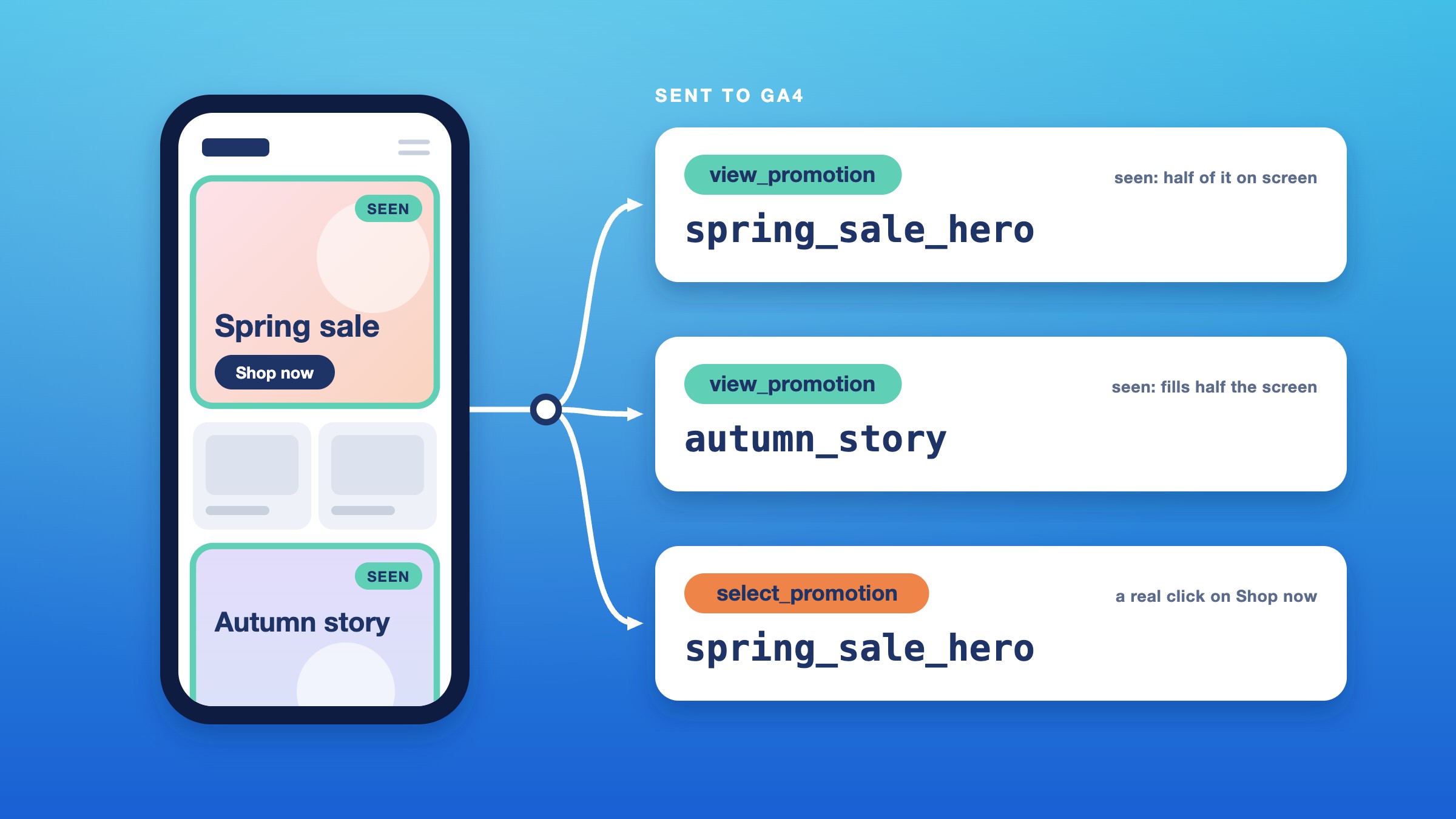
Shopify knows a product was viewed. It doesn’t know which banner sent the shopper there.
Shopify’s Customer Events cover the commerce funnel well, from the first page view to the last checkout step. The questions a marketing team argues about sit around that funnel: is the hero banner worth its slot, which menu path do people take, which filters do they use? Only the website’s theme knows, so the theme has to report it. That’s what a Shopify dataLayer is for: a running list of events the page hands to Google Tag Manager, which sends them on to GA4.
Think of a shop: the till knows what sold, but only the shop floor knows which window display people stopped at. Customer Events are the till, and the theme is the shop floor.
At dtails we built one into the Shopify Plus theme of an omnichannel retailer. The client’s analytics agency owned the event spec and the tag container; we built the theme side. One thing worth knowing before you read on: counted the usual way, a banner taller than two phone screens is never seen, however long the shopper looks at it.
If your homepage changes with every campaign and nobody can say which banner worked, this is for you. If it’s mostly a product grid, a tracking app probably covers what you need.
Shopify’s events stop where your banners start
Shopify already covers a lot. Its standard events handle the funnel, and the Google & YouTube app turns them into GA4 events with no tag work: page views, product views, search, the cart, checkout and purchase. None of them is a promotion event.
A custom pixel can also hear clicks: Shopify’s DOM events give it the clicked element’s id, link and a few other attributes. What it can’t do is look around, because pixels run separately from the page. It learns that someone clicked a link to /collections/spring. It doesn’t learn that the link was the second tile in the homepage hero, what the campaign is called, or which banners the shopper scrolled past without clicking. Only approved heatmap and session-recording apps get a copy of the page, through advanced DOM events.
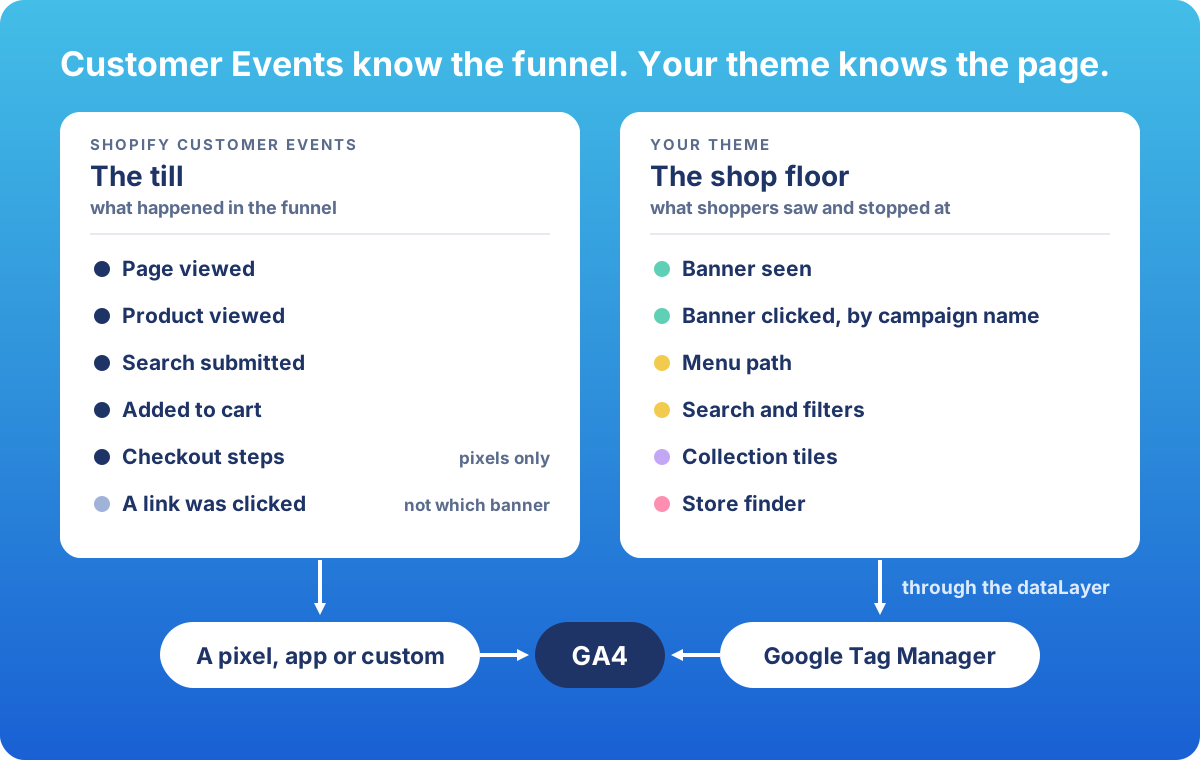 Each kind of event reaches GA4 its own way.
Six questions only your theme can answer
In our build, the theme reports the parts of the page a marketing team asks about, from banners and menus to the store finder:
| The question | What the theme sends GA4 |
|---|---|
| Is the hero banner worth its slot? | Banner seen and banner clicked, under the campaign name your team typed |
| Which way do people browse? | Menu clicks with the full path, such as Sale > Outerwear > Coats |
| Do people find things in search? | Search opened, once per open, and which suggestion was clicked |
| Which filters do people use? | The full filter selection when it’s applied, sorting left out |
| Do the homepage’s collection tiles work? | Tile seen and tile clicked, as events of their own |
| Do online visits lead to store visits? | In-store stock checks, store searches, opening hours and directions |
Every event also carries the page type and whether the shopper is logged in, so any report can be split by who and where.
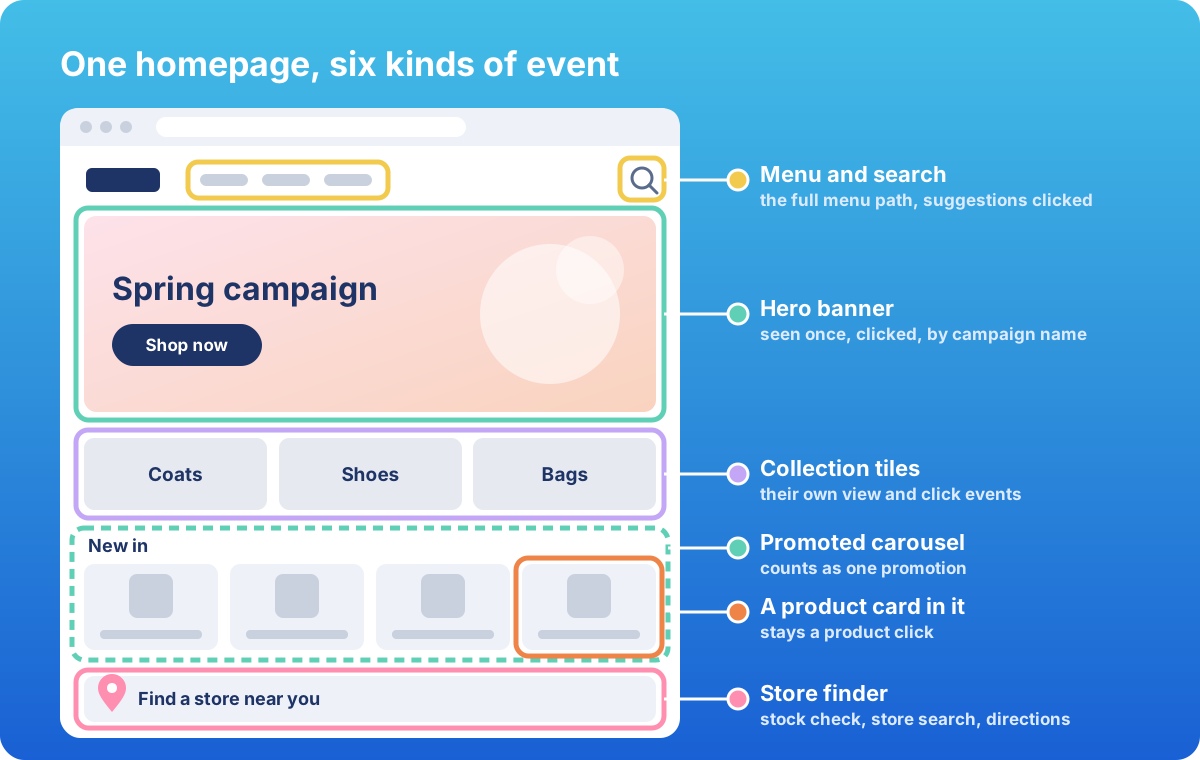 One homepage, six kinds of event. Each section describes itself.
Tracking stuck onto individual banners breaks the first time the page redraws itself, and Shopify pages do that a lot: after a filter click, in the cart drawer, when an app loads. So the theme watches the whole page instead. Each section describes its own promotion through one shared snippet, so a new section joins with one line. It’s the same habit as the member prices I wrote about earlier: the logic lives in data the theme renders.
On privacy: no email or name goes in, and the customer ID is hashed with a secret key, so GA4 never holds Shopify’s own ID. A hashed ID still counts as personal data, though. The dataLayer sends nothing by itself; the tag manager decides what leaves the browser, under the agency’s consent setup.
A banner only counts when someone sees it
GA4 measures internal promotions with two events: view_promotion when a banner is seen, and select_promotion when it’s clicked.
The usual rule counts a view once half the banner is on screen, and for ordinary banners that works. But that half is measured against the banner’s own size. A campaign banner more than twice as tall as the screen can never be half visible, so it scrolls past and is never counted, however long someone looks at it. We added a second rule: a banner also counts once it fills half the screen. Scroll the phone in the demo at the top to see both rules at work.
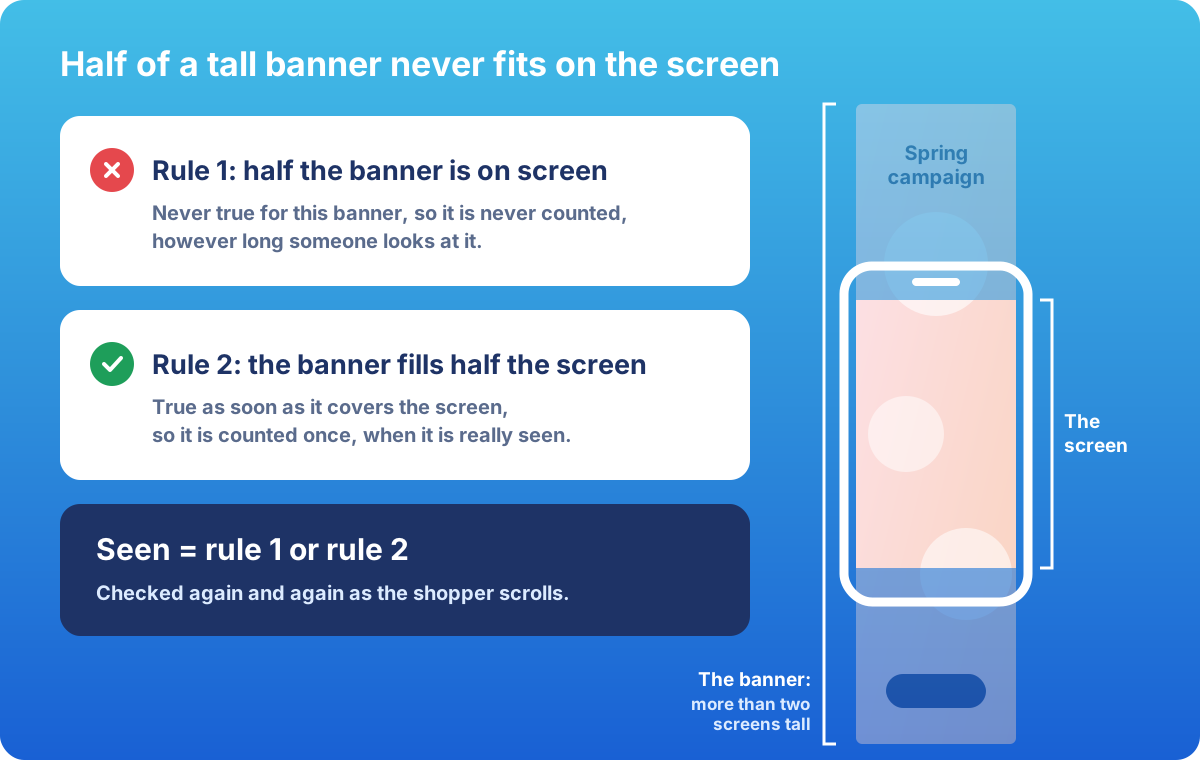 A tall banner never gets half on screen, so “fills half the screen” has to count as seen too.
A few more rules keep the numbers honest:
- Once per page view. Some product grids rebuild themselves on every filter change and put the same promo tile back as if it were new. We count each tile by a fixed id, so it still counts once.
- Only a real click on a link or button is a selection. And a click on a product inside a promoted carousel stays a product click, so it doesn’t drown out the promotion clicks.
- Not every tile is a promotion. Homepage collection tiles would have filled the Promotions report with navigation, so they got their own view and click events.
You can only prove this in a browser. In our build, a scripted check scrolls every page half a screen at a time, on phone and desktop, and confirms each promotion fires exactly once.
Your marketing team names the campaigns
Section and block ids in Shopify are mostly generated strings, and nobody wants a report full of those. So every promotion section got an optional Promotion ID field in the theme editor, under a Tracking heading. GA4 gets it as the promotion ID; the promotion name comes from the section’s own heading. Left blank, the automatic id keeps reporting, so nothing changes until the team starts naming.
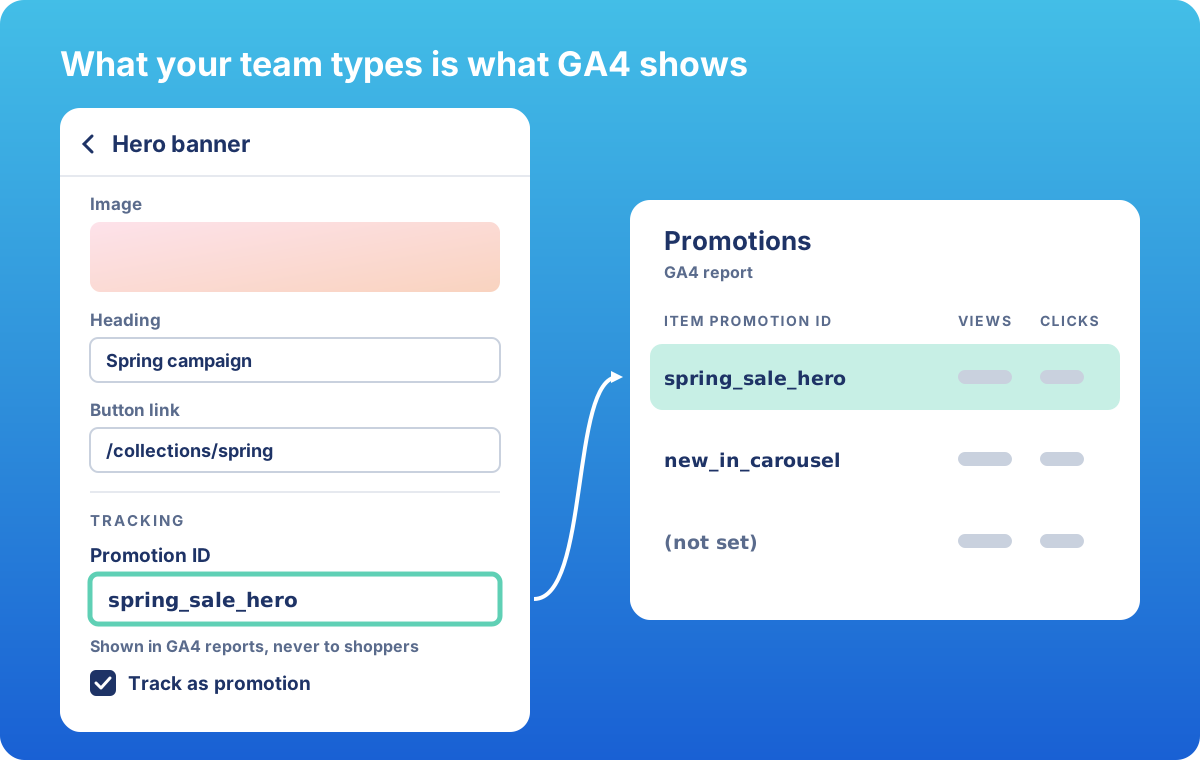 What your team types in the theme editor is what GA4 shows.
A team may well run one campaign in two places on the same page, say spring_sale_hero in the hero and again in a banner further down. If views were counted once per Promotion ID, the second placement would never report. So each tile keeps its own counting key, and the team’s name only goes into the data GA4 receives.
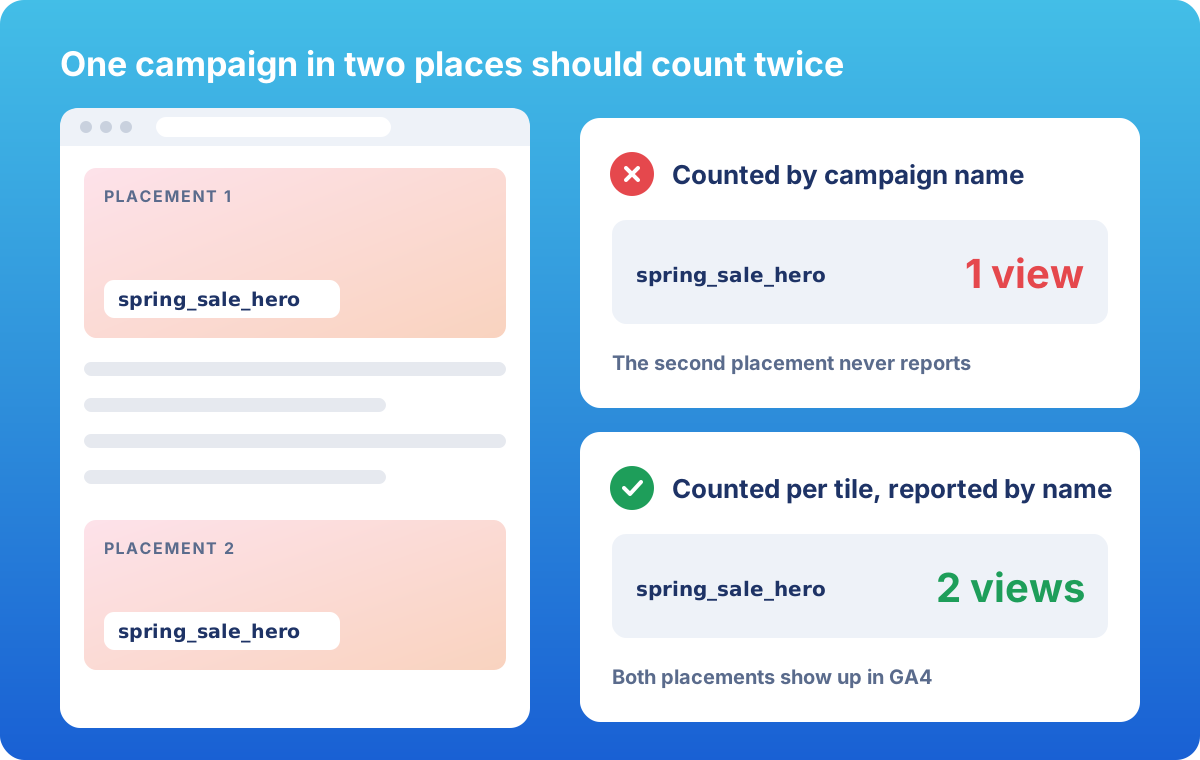 One shopper, one page view, two placements: count per tile, report by name.
Two more settings belong to the marketing team:
- Track as promotion, a checkbox on every section and on by default, keeps an editorial section out of the Promotions report without a developer.
- One master switch, off by default. When it’s off, the page carries no tracking markup at all.
Walk the shop floor after every campaign change
Before a shop opens, someone walks it the way a shopper would. Do the same for your banners; it needs no developer. Open your homepage in Google’s Tag Assistant, or ask your agency for a Tag Manager preview link. Then:
- scroll slowly to the bottom: each banner should arrive once as
view_promotion, under the name your team typed; - scroll back up: nothing new should arrive;
- click one banner: one
select_promotion, under the same name.
It’s the demo at the top of this article, run on your own store.
Once a month, open GA4’s Promotions report and look for:
- “(not set)”: events arriving without an ID at all;
- random ids: banners nobody has named yet;
- a banner with clicks but no views: its views aren’t being counted, for example because it’s more than two screens tall;
- a banner with plenty of views and almost no clicks: a question for the creative, not for tracking;
- a campaign that’s live on the site but missing from the report.
Name what’s unnamed in the theme editor, and send the counting problems to your developer.
Ask your agency and your developer these
- Your analytics agency: Which events does the spec define, and what counts as a promotion? Who names promotions: the spec, or your team in the theme editor? What does the consent setup let through before a shopper accepts?
- Your developer: Does tracking still work after a filter change? Is a banner counted when it’s seen or when it loads, including banners more than two phone screens tall? Can tracking be switched off without a release?
What the theme can’t see
- Checkout and Shopify-hosted account pages don’t run theme code, so there’s no dataLayer there. Checkout stays with pixels, and customer account extensions can publish custom events to them.
- Sign-ups through the account icon in the header happen on Shopify’s side. Liquid’s customer object has no creation date, so on the way back a new account and a returning sign-in look the same to the theme, and both report as a login. I’d rather have a gap in the report than a number I can’t trust.
Notes for your developer
- Listen at the document, in the capture phase, and work out the context at click time. Section Rendering swaps markup (the B2B order grid I wrote about runs on it), apps inject it late, and some components stop propagation; a document listener survives all three.
- Visibility: an IntersectionObserver with thresholds every 0.05, and no minimum time on screen; add one if your agency’s spec asks for it. Seen means an
intersectionRatioof at least 0.5, or anintersectionRect.heightof at least half the viewport.intersectionRatiois relative to the element, hence the second condition. - Dedupe on a stable key, not on the element, with a MutationObserver for tiles that arrive late. Keep the merchant’s Promotion ID out of that key.
- Every promotion event carries
items. GA4 requires them onview_promotionand leaves aselect_promotionwithout them out of the Promotions report. A tile with no product sends one item that mirrors its promotion. - One push function, in a snippet at the top of the head. Hooks call it with optional chaining, so with tracking off nothing runs and no attributes render. The customer ID is an
hmac_sha256of Shopify’s id with a secret key. - GTM in a custom pixel instead? Our read: the same markup could feed
Shopify.analytics.publishwith a prefixed name, such asmy_store:promotion_viewed. We haven’t built that route.
Three things I’d like Shopify to build in
As far as I can tell, Shopify doesn’t do these yet, and each one would retire a piece of this build:
- A standard customer event for promotion views and clicks, so themes and apps send promotions in one shape.
- A way for a theme to opt named attributes, say
data-promotion-*, into theclickedevent, so a custom pixel could read promotion markup without reading the page. - A storefront signal for account creation, so the theme can tell a new account from a returning sign-in.
If I’ve got any of this wrong, especially about what pixels can see, I’d like to hear it.
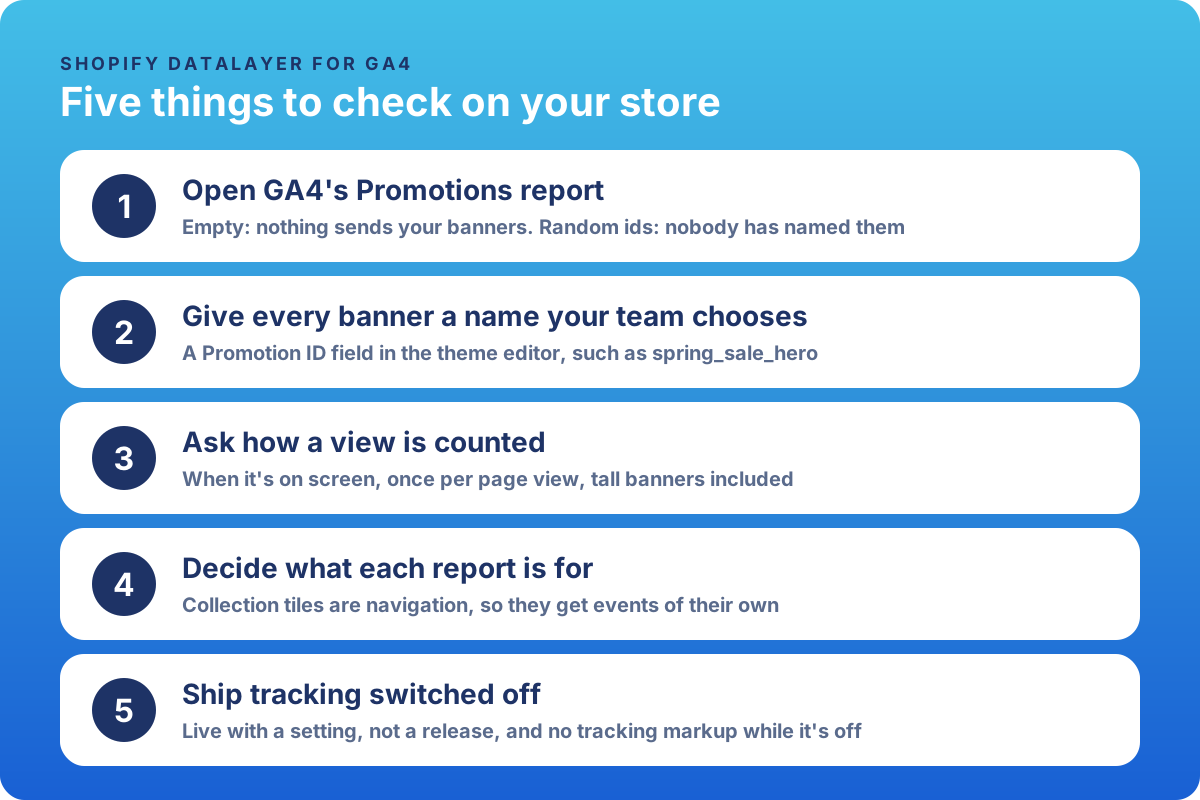 The five checks on one card, to save or share.
Frequently asked questions
Why is my GA4 Promotions report empty on Shopify?
Usually because nothing on the store sends promotion events. Shopify’s Customer Events cover pages, products, search, the cart, checkout and clicks on any element, but have no promotion event: nothing reports that a banner was seen, or which campaign a click belonged to. The theme has to send view_promotion and select_promotion itself, with an item on each event, or GA4 leaves them out of the report.
Can our team name promotions without a developer?
Yes, if the theme gives every banner section a Promotion ID field. Your team types a readable name in the theme editor, and it goes to GA4 with every view and click. Left blank, an automatic id keeps reporting, so nothing breaks while you name things.
How can I check banner tracking without a developer?
Open your homepage in Google’s Tag Assistant, or in a Tag Manager preview link from your agency, and scroll slowly to the bottom. Each banner should appear once as view_promotion, under the name your team typed, and a click should add one select_promotion. Once a month, look in GA4’s Promotions report for “(not set)” rows and for live campaigns that are missing.
Why does banner tracking stop working after a filter change on Shopify?
Many Shopify themes update the page with the Section Rendering API, which swaps in fresh markup, and tracking attached to the old elements goes with it. Listening once at the document and working out the context at click time survives every update.
Can a Shopify theme tell when a customer creates an account?
Not reliably when shoppers sign up through Shopify’s own sign-in in the header. Liquid’s customer object has no creation date, so on the way back a new account and a returning sign-in look the same to the theme. Counting those sign-ups needs a signal from outside the theme.
Takeaway
The till will always know what sold. Only the theme can say which banner people stopped at, so decide what each GA4 report is for before anyone writes the first line of tracking.
Working on something similar? I’m always happy to compare notes: get in touch or find me on LinkedIn.